
How do you know if your Google Ads are actually working—or if you’re just paying for expensive clicks that never turn into customers?
The answer isn’t in impressions, click‑through rate, or even average cost per click. Those can all look “good” while your phone stays quiet and your pipeline stays empty. The only way to really know your Google Ads are working is to track what happens after the click: leads, opportunities, and closed sales.
In this post, we’ll walk through a practical, step‑by‑step way to do that using clear goals, Google Tag Manager, Google Analytics, and your CRM—so you can finally see what’s working, what’s wasting money, and where to optimize.
Start With a Clear Goal (Or You’ll Track the Wrong Things)
Before you touch a single setting in Google Ads, you need to answer one question: “What exactly do I want this campaign to make happen?”
That “what” is your conversion goal, and it must be something that matters to your business—not Google’s interface and not a vanity metric.
For most businesses, a meaningful goal looks like:
- Form fills (contact, “Request a Quote,” “Book a Consultation”)
- RFQs (request for quote or proposal)
- Phone calls from your website (click‑to‑call on mobile, tracking numbers on desktop)
- Appointment bookings
- E‑commerce purchases or paid deposits
If you’re a B2B company, your primary goal might be RFQs or demo requests. If you’re a local service business—say, an electrician or plumber—it might be phone calls and “Schedule Service” forms. If you’re an e‑commerce business, it will be completed purchases and maybe add‑to‑cart behavior as a secondary goal.
The key is that your goal becomes your definition of success.
When you’re clear on that goal:
- Your ad copy can speak directly to that action (“Request Your Quote Today”).
- Your landing page can be built to make that action obvious and easy.
- Your measurement plan can be built around tracking whether that action happens, not just whether someone arrives on your site.
Without this clarity, it’s very easy to end up in “reporting theater”—lots of charts and metrics, but no clear link to revenue.
Turn Business Goals Into Trackable Events With Google Tag Manager
Once you know your goal, the next step is to turn that real‑world action into something your analytics tools can see and measure reliably.
That’s where Google Tag Manager (GTM) comes in.
What Google Tag Manager Does for You
Think of GTM as the central control panel for all the tracking code on your site. Instead of asking your developer to hard‑code new scripts and events every time you want to track something, you can use GTM to:
- Add and manage tags (snippets of code for Analytics, Ads, remarketing, etc.)
- Define triggers that fire those tags when specific actions happen
- Pass structured data to tools like Google Analytics in a consistent way
For Google Ads performance, the actions you care about—form submissions, phone clicks, RFQs—should all be turned into events that you can send into Google Analytics. Then you’ll be able to see, “This ad campaign drove X form fills and Y phone calls,” not just “It brought 137 visitors.”
Examples of Events You Should Track
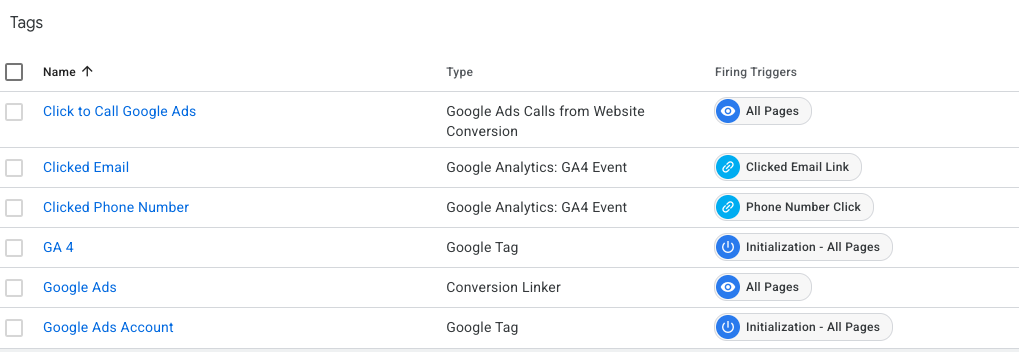
Here are common events you can configure in GTM to match your goals:
- Form submissions – When someone submits your contact form, RFQ form, or “schedule service” form, you fire an event such as
generate_leadorrequest_quote. - Phone call clicks – When someone clicks a phone number link (a
tel:link), especially on mobile, you fire an event such asclick_to_call. - “Thank You” page views – If your forms redirect to unique thank‑you URLs, you can trigger an event anytime that URL loads.
- Key engagement actions – For some businesses, starting a quote, beginning a checkout, or downloading a key brochure may also be worth tracking as events.
Each of these becomes a data signal that Google Analytics can store and analyze.
Instead of just seeing “120 users from Google Ads visited your site,” you’ll see:
- 120 users from Google Ads
- 18 form submissions
- 5 phone clicks
- 3 RFQ submissions
Now you’re speaking the language of leads—not just traffic.
Track Events as Conversions in Google Analytics (GA4)
Once events are flowing from GTM into Google Analytics, the next step is to treat the important ones as conversions.
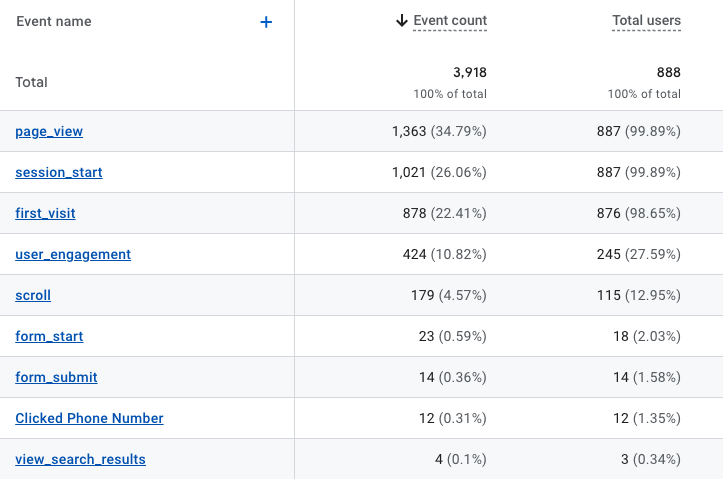
In Google Analytics 4 (GA4), everything meaningful is an event. Instead of having separate “goals” and “events” like the old Universal Analytics, you:
- Capture important user actions as events.
- Mark specific events as conversions.
For example, you might send these events from GTM into GA4:
generate_leadfor contact form submissionsrequest_quotefor RFQ formsclick_to_callfor phone link clickspurchasefor completed orders
Inside GA4, you can then mark generate_lead, request_quote, click_to_call, and purchase as conversions. That tells GA4, “These are the actions that matter most to my business.”
Why this matters for Google Ads:
- GA4 will show you how many conversions you’re getting by traffic source, campaign, device, and more.
- You can send those conversions into Google Ads so campaigns can be optimized to generate more of them.
- You can stop judging campaigns by “sessions” or “pageviews” and start judging them by leads and revenue.
Once you’ve set this up, your GA4 reports can answer questions like:
- How many leads did we get from paid search last month?
- Which landing pages convert the best for Google Ads traffic?
- Are phone calls or forms more common from mobile visitors?
You’re moving from “gut feel” to hard numbers.
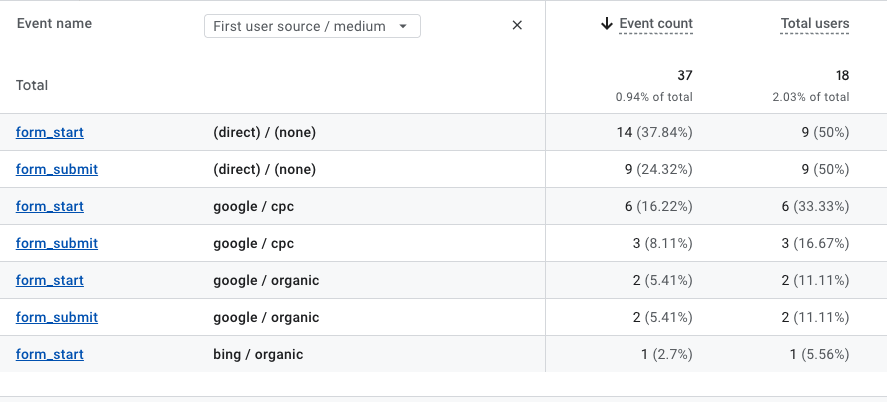
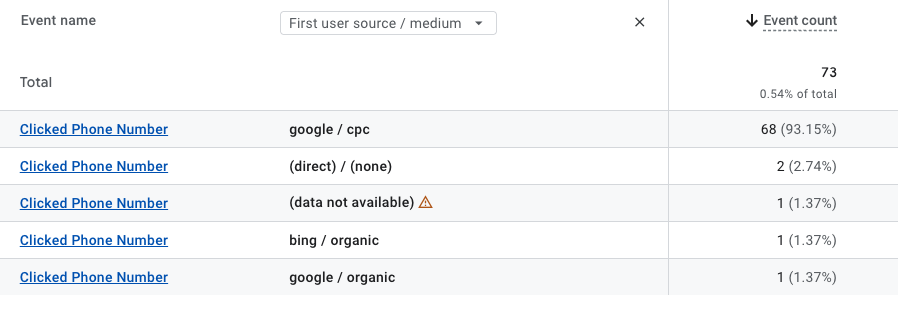
Use Source/Medium to See What’s Really Working
GA4 doesn’t just tell you that an event happened. It also tells you where that visitor came from using traffic‑source dimensions, including:
source(e.g.,google)medium(e.g.,cpc,organic,email)source/mediumas a combined value (e.g.,google / cpc,google / organic)
When you combine your events and conversions with source/medium, you gain real clarity.
You can see, for each key action:
- How many
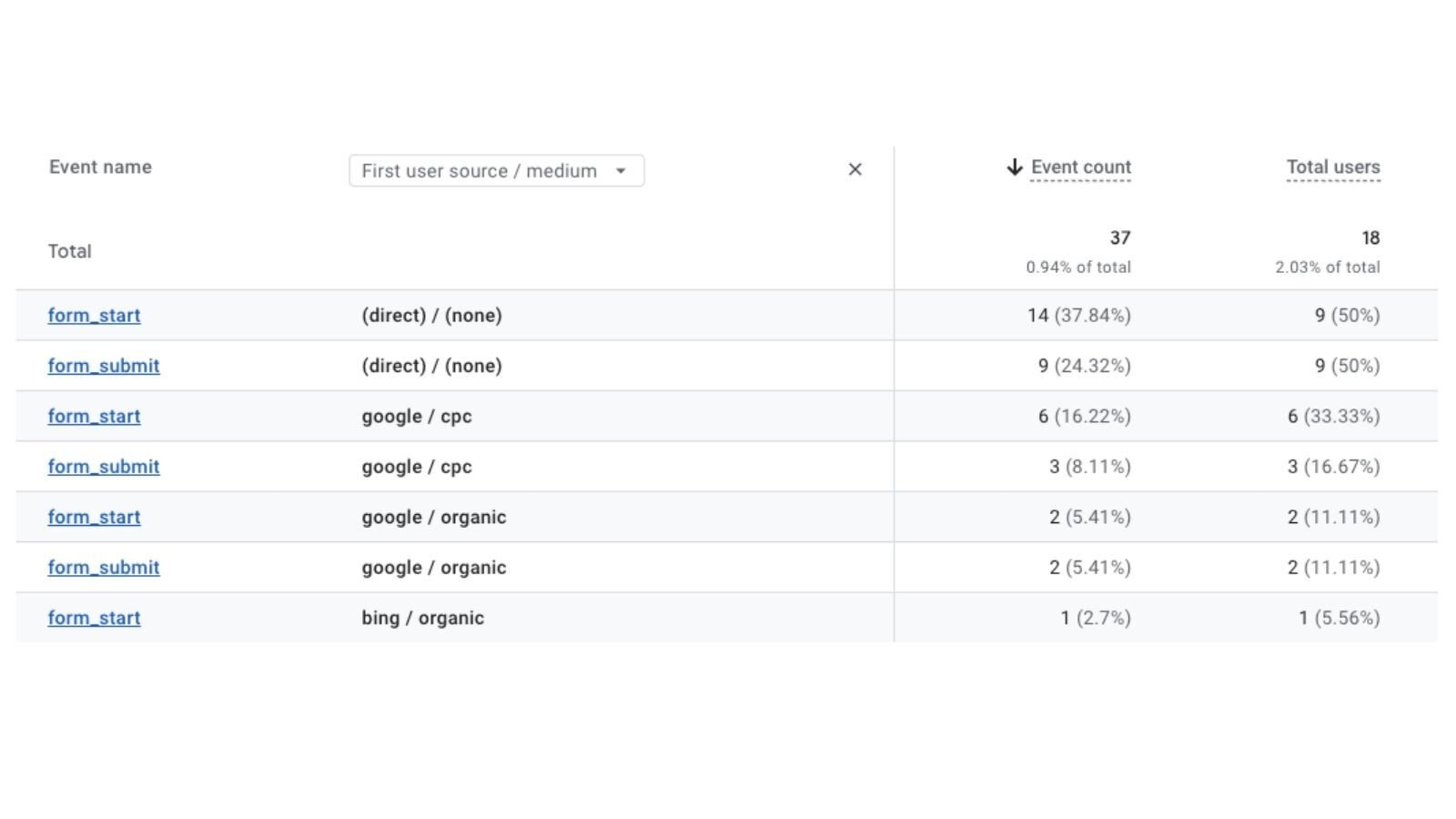
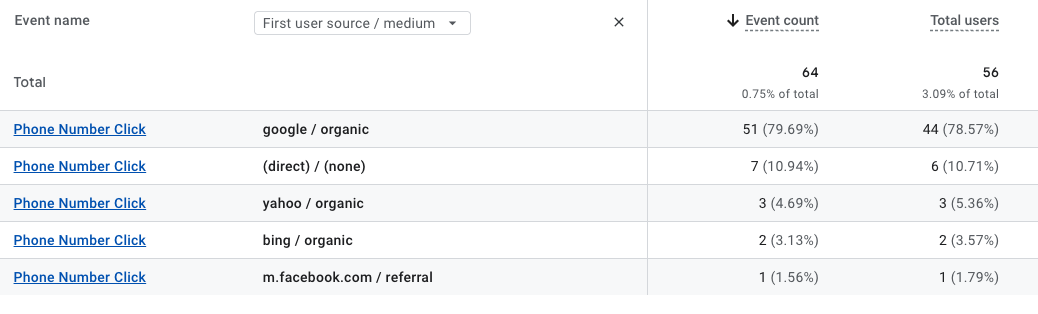
generate_leadevents came fromgoogle / cpcvsgoogle / organic. - How many
request_quoteevents came fromgoogle / cpccompared with social or email. - Whether your phone calls are mostly coming from paid Google traffic or from other sources.
This is where you find out, for example, that:
- Google Ads might be driving fewer overall visits than organic search, but a much higher percentage of those visits convert into RFQs and phone calls.
- A certain campaign you thought was “doing fine” because it had a decent click‑through rate is actually producing zero conversions.
- Branded campaigns (people searching your company name) behave very differently from non‑brand campaigns (people searching for your service generically).
With a few well‑designed GA4 explorations and reports, you can go from “We think Google Ads is working” to “We know google / cpc generated 32 qualified leads and 7 closed deals last quarter.”
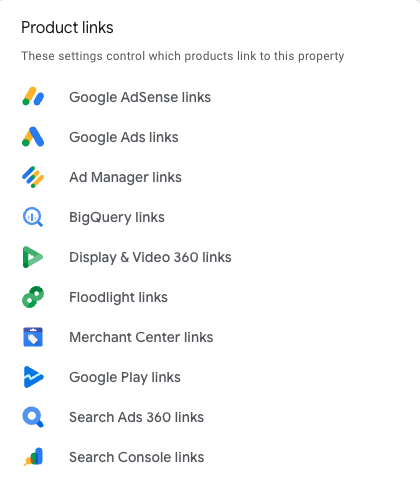
Connect Your Google Ads Account to Google Analytics
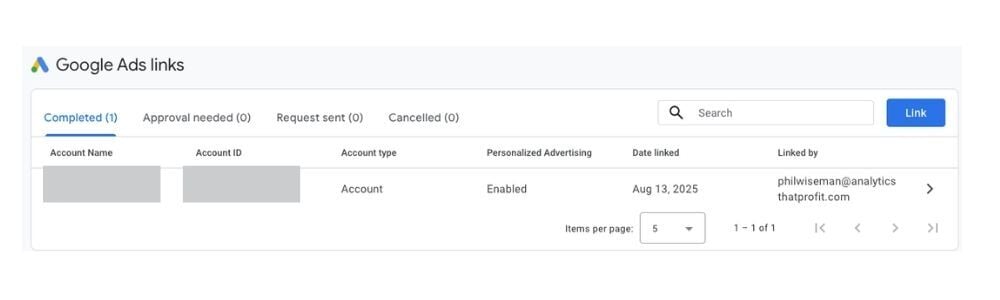
So far, we’ve talked about getting good data into Google Analytics. The next step is to connect that data directly with your Google Ads account.
Linking Google Ads and GA4 does two crucial things:
- Google Ads data flows into GA4
You can see Google Ads campaigns, ad groups, and (where available) keyword information inside GA4. That means you can analyze behavior and conversions for each campaign based on what people actually do on your site, not just what happens in the Google Ads interface. - GA4 data flows back into Google Ads
You can import GA4 conversions into Google Ads and use them for bidding and optimization. Google Ads can then automatically adjust bids or budgets to prioritize the traffic that leads to real conversions, not just clicks.
This connection unlocks several powerful capabilities:
- Full‑journey visibility – You see the complete path from ad click to on‑site behavior to conversion, all in one place. A campaign that looks healthy inside Google Ads (good click‑through rate, solid Quality Score) might show very poor engagement or low conversion rates in GA4.
- Better optimization decisions – Instead of optimizing for click‑through rate or cost per click, you can optimize for cost per conversion and return on ad spend.
- Audience building and remarketing – You can build audiences in GA4 based on on‑site behavior (for example, “people who started but didn’t complete a form”) and use them in Google Ads campaigns.
If your Google Ads isn’t linked to Google Analytics, you’re effectively flying blind. You’ll see spend, clicks, and maybe conversions tracked on the Ads side—but you won’t see the richer, multi‑channel context that GA4 provides.
Close the Loop in Your CRM: From Click to Customer
Even with rock‑solid Google Ads and Analytics tracking, you’re still only seeing half the story if you stop at leads.
Not every lead is created equal. Some are tire‑kickers, some are unqualified, and some become your best customers.
That’s why the final step in knowing whether your Google Ads are working is to bring your CRM into the picture.
Why “Lead Source” in Your CRM Matters
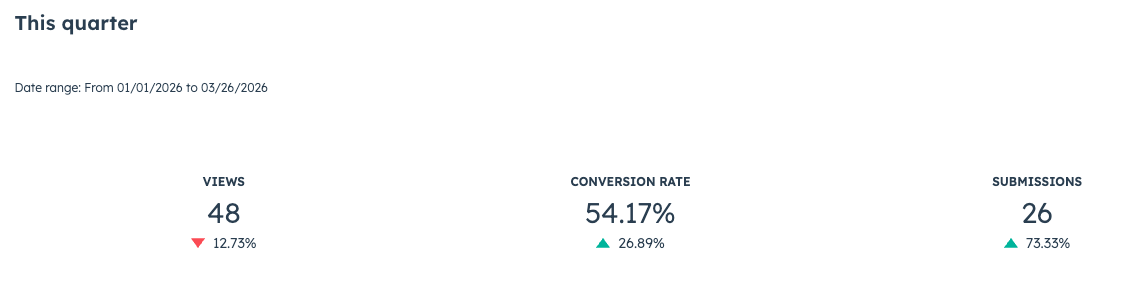
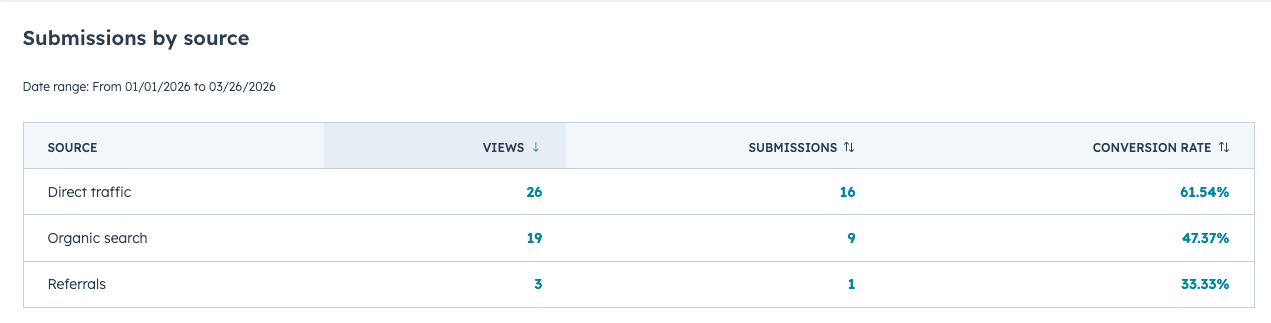
Your CRM is where sales conversations and revenue live. If you can connect each contact or opportunity to a accurate lead source, you can answer questions like:
- How many deals did we close from Google Ads last quarter?
- What is the average deal size for Google Ads leads compared to organic or referrals?
- Which campaigns or keywords tend to produce high‑value customers versus low‑value ones?
To do this, you typically need:
- A lead source field in your CRM (e.g., “Google Ads,” “Organic Search,” “Referral,” “Email,” etc.)
- Ideally, a more detailed breakdown field (campaign, ad group, keyword) when that data is available and meaningful
- A consistent process—manual or automated—for filling those fields when a new lead is created
Simple Ways to Tie Web Leads Back to Source
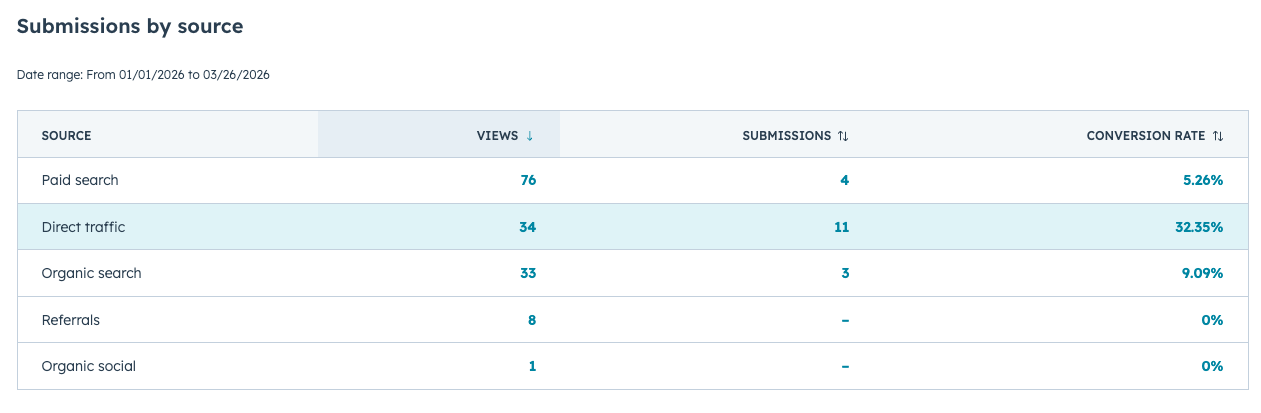
Depending on your tech stack, you can connect the dots in several ways:
- Use hidden form fields on your website to capture UTM parameters (such as
utm_source,utm_medium,utm_campaign) and pass them into your CRM when a form is submitted. - Use integrations between your forms, Analytics, and CRM so that the original source/medium is logged automatically on each new contact.
- For phone calls, use call tracking tools or dynamic number insertion to assign unique numbers to Google Ads traffic and record that in the CRM when a call becomes a lead or opportunity.
Over time, this lets you move beyond “We got 40 leads from Google Ads” to “We closed 8 deals and $120,000 in revenue from Google Ads—and we can see which campaigns drove them.”
That’s the level of insight you need to make confident budget decisions.
Pro Tip: When calculating ROAS- Return On Ad Spend- use gross profit, not total sales.
Use Your Data to Optimize, Not Guess
Once you have this “click → event → conversion → CRM” chain in place, your job shifts from guessing to optimizing.
Here’s how you can use the data you’ve collected to continuously improve your Google Ads performance:
- Pause or adjust underperformers
If GA4 shows that a campaign brings a lot of traffic but almost no conversions, and your CRM confirms few or no closed deals, that campaign needs to be paused, re‑targeted, or re‑messaged. - Shift budget to winners
Campaigns, ad groups, and keywords that consistently generate high‑quality leads and closed deals should get more budget. - Improve your landing pages
If a campaign gets decent traffic but GA4 shows high bounce rates and low engagement, your landing page might have a messaging, speed, or user‑experience problem. Small changes to copy, layout, and offers can make a big impact on conversion rate. - Refine your targeting
Use search term reports and audience insights to refine which queries and audiences you keep bidding on. Cut out irrelevant queries that generate clicks but never lead to conversions. - Align marketing and sales
When sales can see which leads came from Google Ads, they can give feedback about lead quality. That feedback can be fed back into your keyword strategy, ad copy, and landing pages.
Optimization becomes a loop:
- Set clear goals.
- Track them with Tag Manager and GA4.
- Connect Google Ads and Analytics.
- Tie leads and revenue back to source in your CRM.
- Adjust campaigns and landing pages based on actual business outcomes.
- Repeat.
This is how you move from “We think Google Ads is working” to “We know exactly how Google Ads contributes to our pipeline and revenue.”
Warning Signs Your Google Ads Aren’t Really Working
Even if reports look busy and full of numbers, there are a few red flags that usually mean your Google Ads performance is weaker than it appears:
- Your Google Ads and Google Analytics accounts are not connected.
- You don’t have events or conversions set up in GA4—only pageviews.
- You can’t easily see events or conversions broken down by
source/medium. - Your CRM has little or no reliable lead source data, or everything says “Website” with no detail.
- Your reports focus on impressions, clicks, and cost, but rarely show leads, opportunities, or revenue.
If any of this sounds familiar, you’re not alone—and it almost always means you’re leaving money on the table and possibly wasting ad spend.
Ready to See If Your Google Ads Are Actually Paying Off?
You can’t improve what you can’t measure. If your Google Ads are not clearly tied to leads, sales, and revenue in your analytics and your CRM, you’re essentially guessing with your ad budget.
The good news: once the right goals, events, and integrations are in place, your data will start working for you. You’ll know which campaigns are bringing in qualified leads, which ones need help, and which ones you should stop paying for.
If you’re tired of guessing and want a clean, data‑driven view of how your Google Ads are really performing—from the click all the way to closed business—schedule a time to talk with Phil Wiseman.
- Clarify the goals that actually matter to your business
- Configure Google Tag Manager and GA4 so your conversions are tracked correctly
- Connect Google Ads and Analytics so data flows both ways
- Tie your CRM revenue back to lead source so you can finally see true ROI
Ready to find out if your Google Ads are working—or just working your wallet?